EmbedDraw 3.2

Embeddable visual editors for Delphi VCL & FMX

EmbedDraw 3.2 — formerly known as PLABEL — is a complete component suite for Delphi that lets your users design labels, build flowcharts and create technical drawings, all inside your app. Version 3.2 adds Mermaid and PlantUML diagram import, symbol animation along paths, GML and GPX geospatial files, and a built-in MCP server so AI assistants can drive the editor.

Delphi 10 – 13 Florence VCL + FMX Mermaid · PlantUML MCP Server & AI Tools PDF · SVG · PNG/JPG/GIF Skia Rendering 30+ Drawing Elements
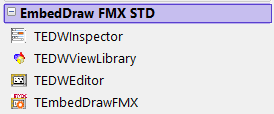
PLABEL is now EmbedDraw. The Delphi component suite keeps the same team, the same API and the same licenses — only the name has changed. From version 3.2 the design-time palette is EmbedDraw VCL STD / EmbedDraw FMX STD and the classes use the TEDW prefix (TEmbedDrawVCL, TEmbedDrawFMX, TEDWEditor…). Existing PLABEL customers upgrade with their usual update license.
30+ Drawing elements
3 Editor modes
VCL + FMX Unified API
8 Delphi versions
MCP AI-ready server

What's New in Version 3.2

  • New name — the PLABEL component suite is now EmbedDraw: new palette (EmbedDraw VCL STD / EmbedDraw FMX STD) and TEDW class prefix.
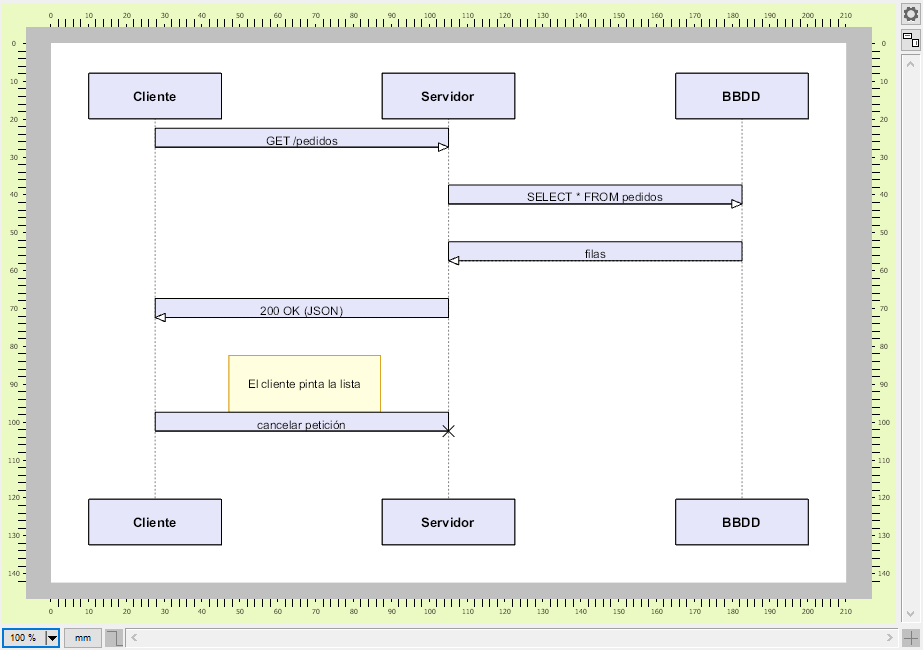
  • Mermaid and PlantUML import — turn a text diagram into fully editable flowchart and sequence drawings with LoadFromDiagram / LoadFromDiagramText.
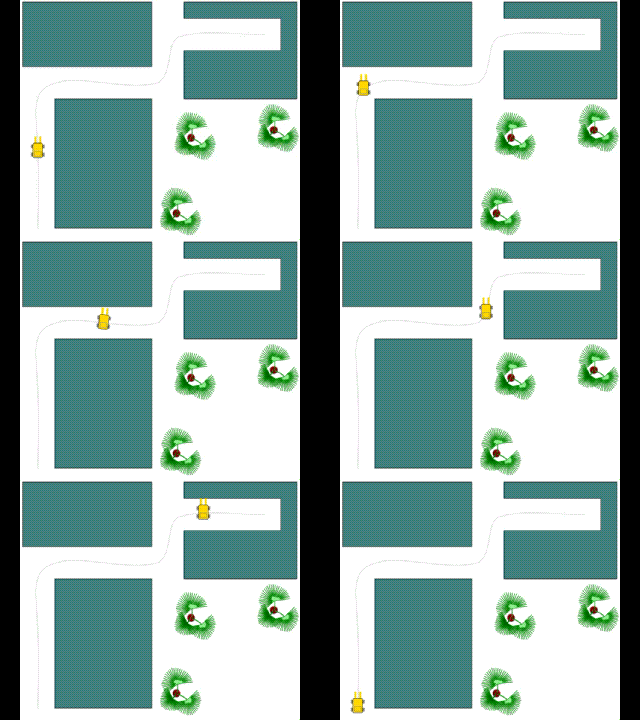
  • Symbol animation along paths — move TEDWSymbol elements over lines, arcs and Bézier trajectories for interactive schematics and process simulations.
  • GML support — load and display Geography Markup Language files.
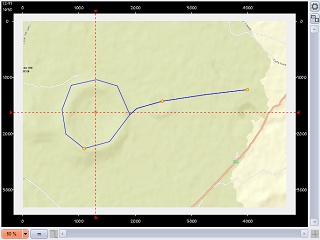
  • GPX support — load and display GPS tracks, routes and waypoints.
  • Built-in MCP server (TEDWMCPServer) — expose the editor over the Model Context Protocol so an AI assistant can create, modify and export drawings.
  • AI Tools — ready-made client for Anthropic (Claude), OpenAI, Google Gemini and OpenRouter, with native tool-calling support.
  • Consolidated demos — a single All demo project plus a dedicated Diagrams sample, easier to explore and to keep up to date.
  • Updated developer and end-user documentation with the v3.2 manuals.
EmbedDraw VCL 3.2 EmbedDraw VCL 3.2
EmbedDraw FMX 3.2 EmbedDraw FMX 3.2

Version 3.2 Features

Mermaid and PlantUML diagram import

Mermaid & PlantUML Import

Load a .mmd or .puml file — or a string already in memory — and EmbedDraw converts it into native TEDWFlow and TEDWLink items that your users can edit, print and export like any other drawing. Flowcharts and sequence diagrams are supported, with automatic level layout and format auto-detection.

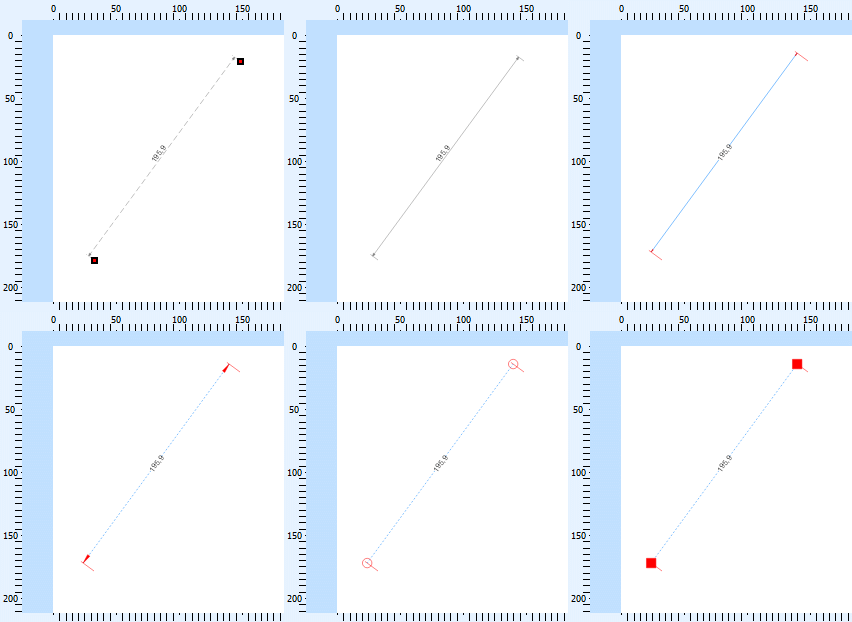
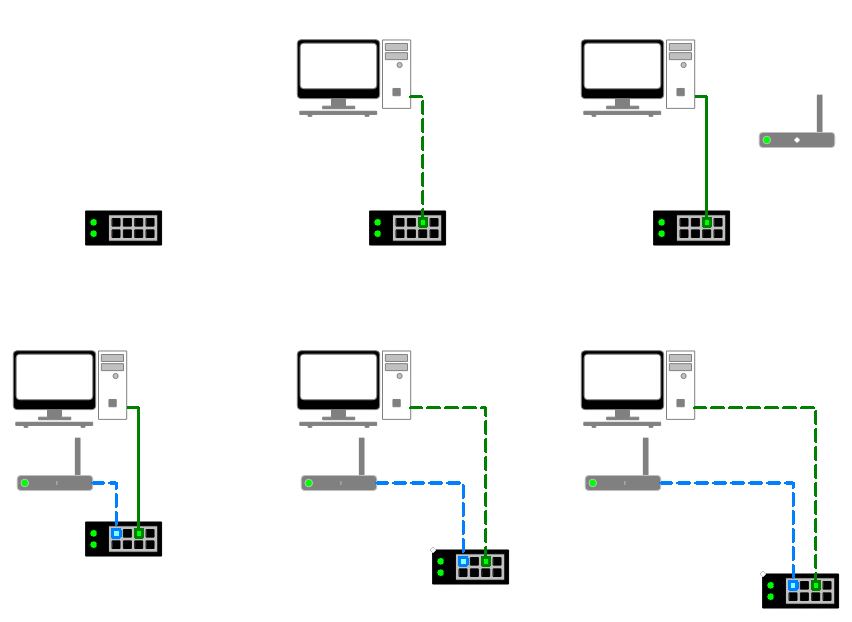
Symbol animated along a path in the editor

Symbol Animation Along Paths

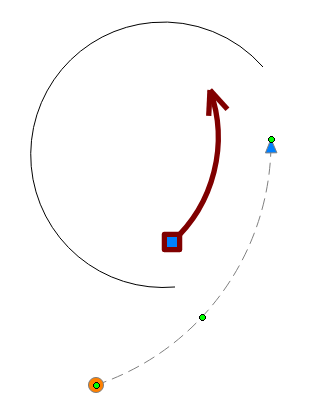
Animate TEDWSymbol elements along a geometric trajectory built from lines, arcs and Bézier segments, with per-symbol speed control and a shared update timer. Ideal for interactive schematics, process simulations, circuits and installation diagrams. Requires the interactive editor mode (emInteractive), which keeps users from moving the animated items by hand.

GML geospatial file rendered in the editor

GML Files

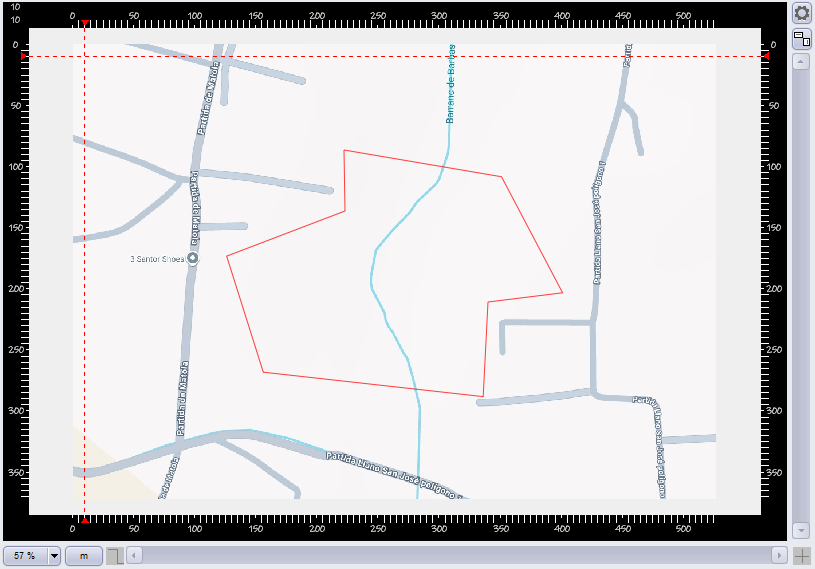
Read Geography Markup Language files and render their geometries as editable drawing elements, ready to combine with the online map backgrounds already available in the editor.

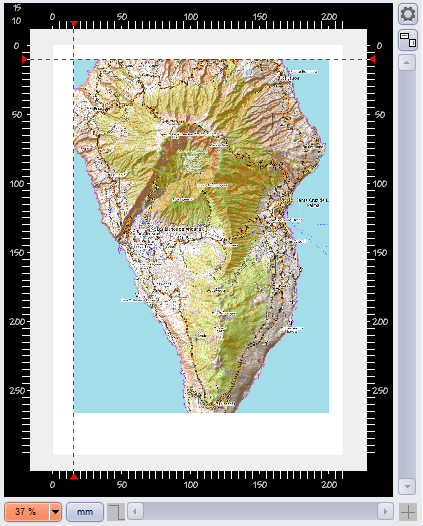
GPX track loaded and displayed in the editor

GPX Tracks & Routes

Load GPS Exchange Format files to display tracks, routes and waypoints over a map layer — useful for field reports, plot delimitation and logistics documentation.

MCP server component driving the editor

MCP Server (TEDWMCPServer)

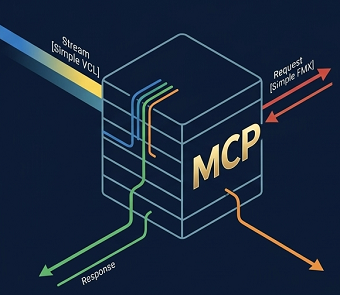
Drop TEDWMCPServer on your form and your application exposes the editor over the Model Context Protocol (JSON-RPC 2.0 over streamable HTTP). AI assistants can then call tools such as create_item, modify_item, list_layers, load_diagram or export_document to build and export drawings on their own.

AI tools generating a drawing from a prompt

AI Tools

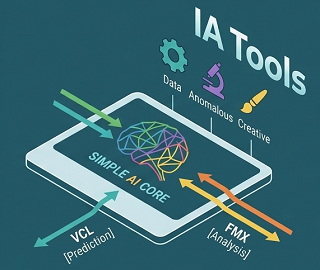
A ready-made AI client (TMCPAIClient) that talks to Anthropic (Claude), OpenAI, Google Gemini and OpenRouter using each provider's native request, response and tool-calling format — so you can add "describe the drawing you need" features without writing any HTTP plumbing.

Core Features

Cross-platform FireMonkey support

Cross-Platform with FireMonkey

EmbedDraw ships with full FireMonkey (FMX) support, bringing your label and diagram designs to cross-platform targets alongside the traditional VCL framework for 32-bit and 64-bit Windows — with the same unified API on both.

Skia graphics engine

Skia Graphics Engine

Powered by Skia (via Skia4Delphi), the same open-source 2D engine behind Google Chrome and Android, ensuring smooth, professional and scalable rendering across every platform.

Print preview and export

Print, Preview & Export

Built-in print preview with export to PDF, SVG and raster image formats.

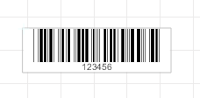
Barcode support

1D & 2D Barcode Suite

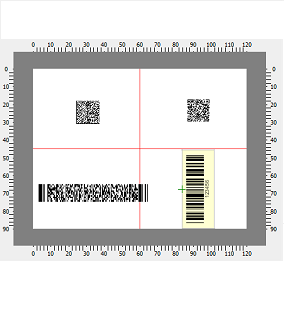
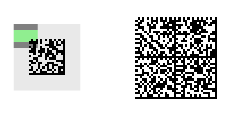
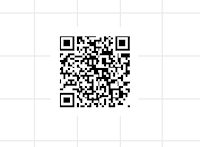
QR Code, DataMatrix, PDF417 and classic barcodes — ready to print.

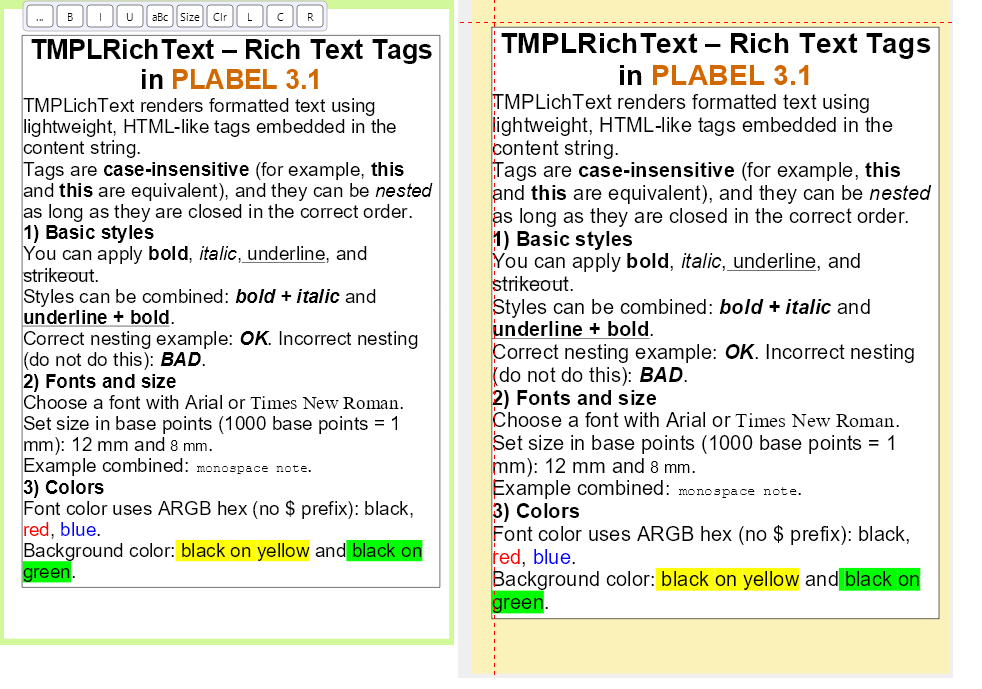
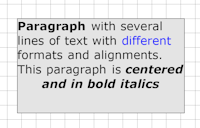
Rich text TEDWRichText

Rich Text (TEDWRichText)

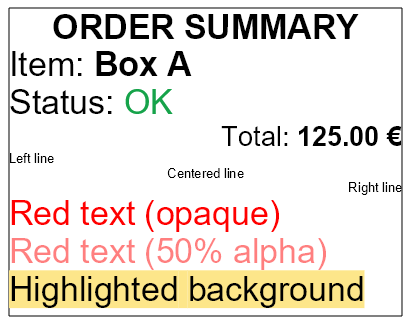
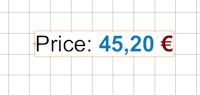
The TEDWRichText element lets you mix fonts, colors, styles (bold, italic, underline) and per-line alignment within a single text block using simple markup tags — available in both VCL and FMX.

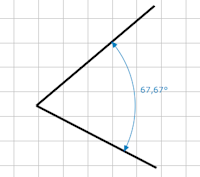
Advanced CAD dimensions

Advanced CAD Dimensions

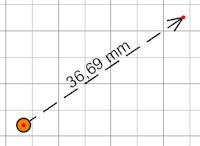
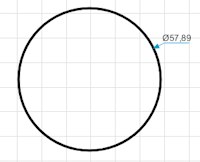
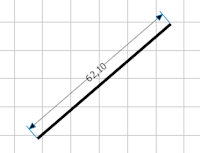
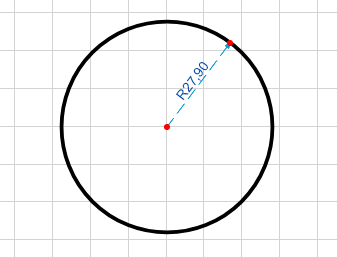
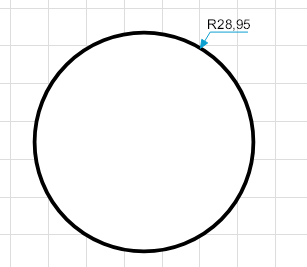
Magnetic tangent and perpendicular snaps plus dedicated dimension styles for radii, diameters and angles between lines for precise technical drawings.

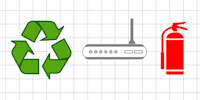
Symbol libraries

Reusable Symbol Libraries

Create, store and reuse symbols with connectors and link points.

Online map integration

Online Map Integration

Assign live map imagery from Google Maps or OpenStreetMap as layer or image backgrounds — configure latitude, longitude, zoom level and map type directly in the editor.

Flexible data binding

Flexible Data Binding

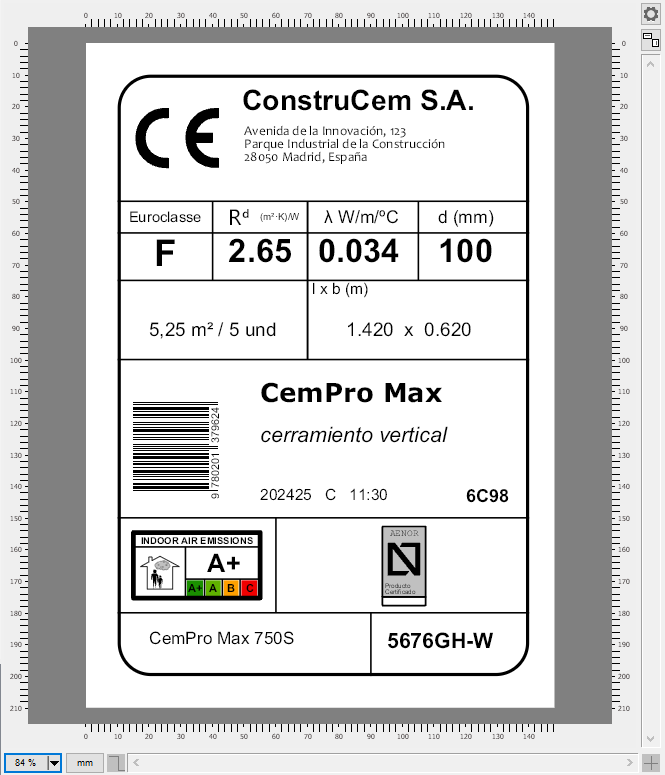
Connect barcode, text and image elements to TDataSet (SQL, SQLite…), JSON and CSV data sources — with repeat-field support for printing multiple labels per record.

Layer management

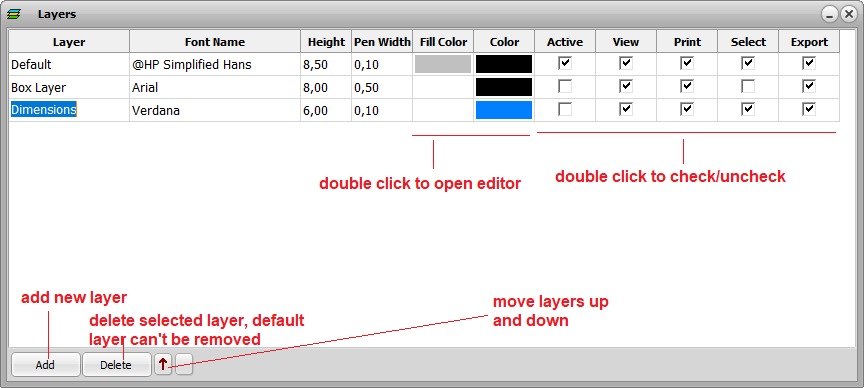
Layer Management

Organize designs with multiple drawing layers. Each layer can be independently configured for visibility, selectability, printability and inclusion in PDF, SVG or image exports.

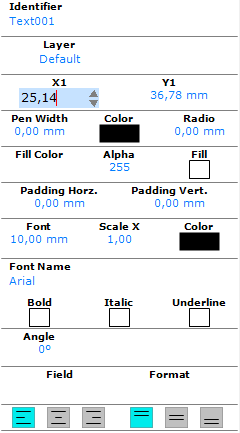
Custom object inspector

Custom Object Inspector

A fully customizable property inspector that lets users view and edit every attribute of the selected element — colors, dimensions, fonts, data bindings and more — directly at design time.

Label rotation

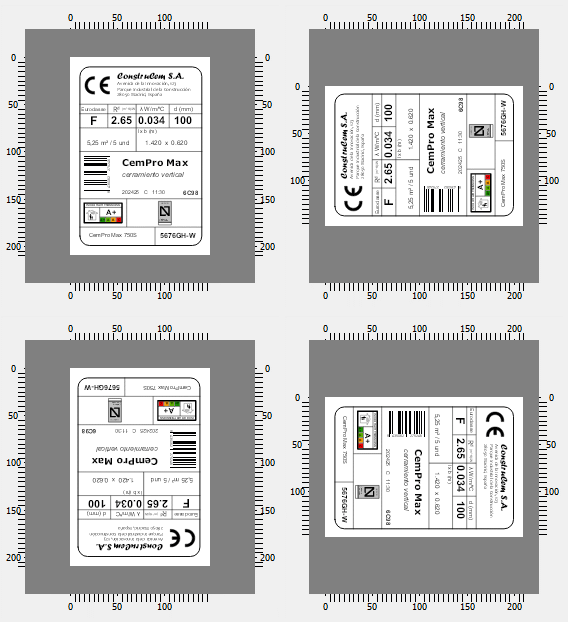
Label Rotation

Rotate any element or entire label freely to any angle, enabling vertical text, angled layouts and precise positioning for complex designs.

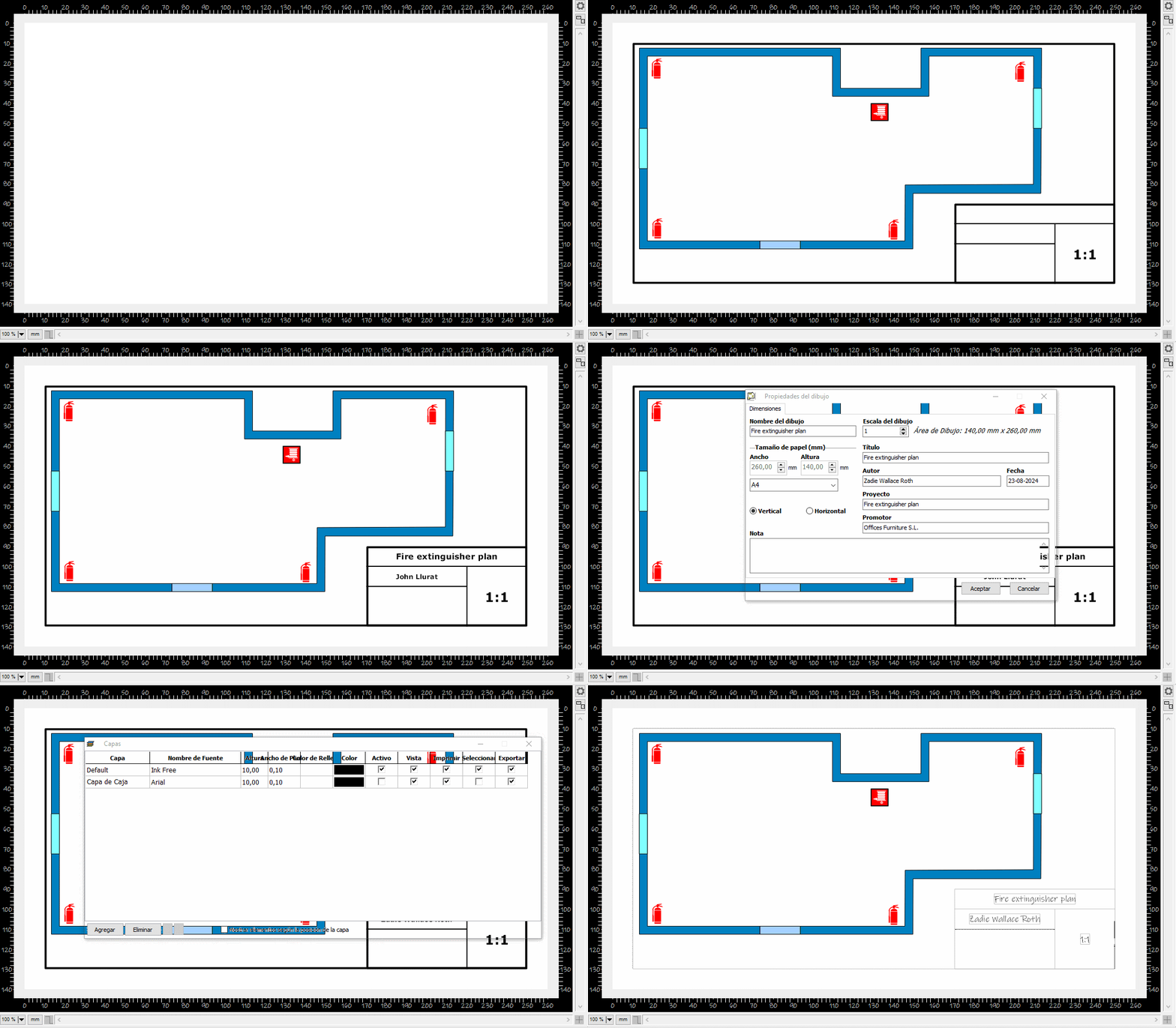
Drawing title block

Drawing Title Block

Add a professional title block (cajetín) to your technical drawings with customizable fields for project name, author, date, revision and scale information.

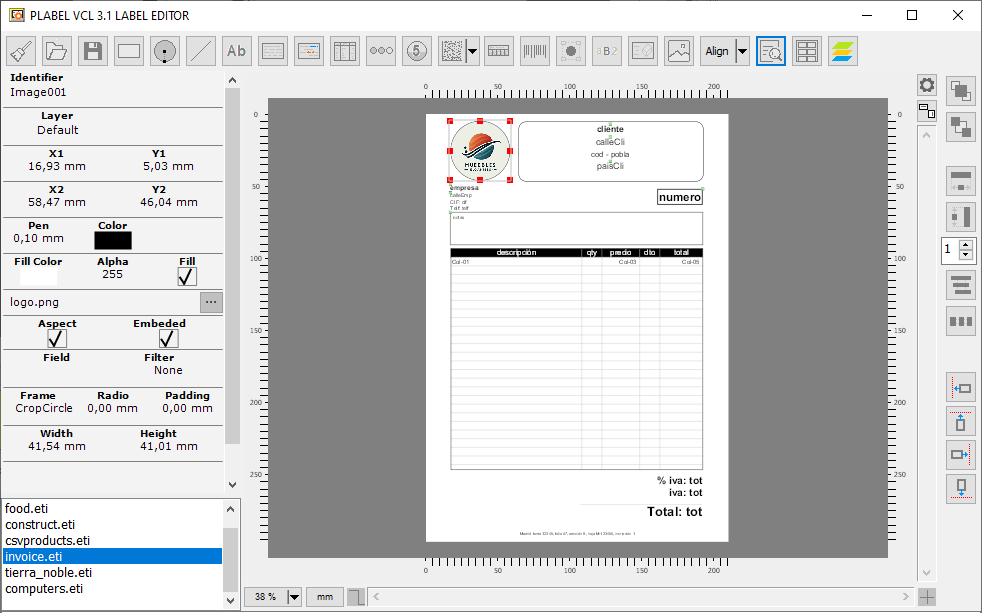
Single-page reports

Single-Page Reports

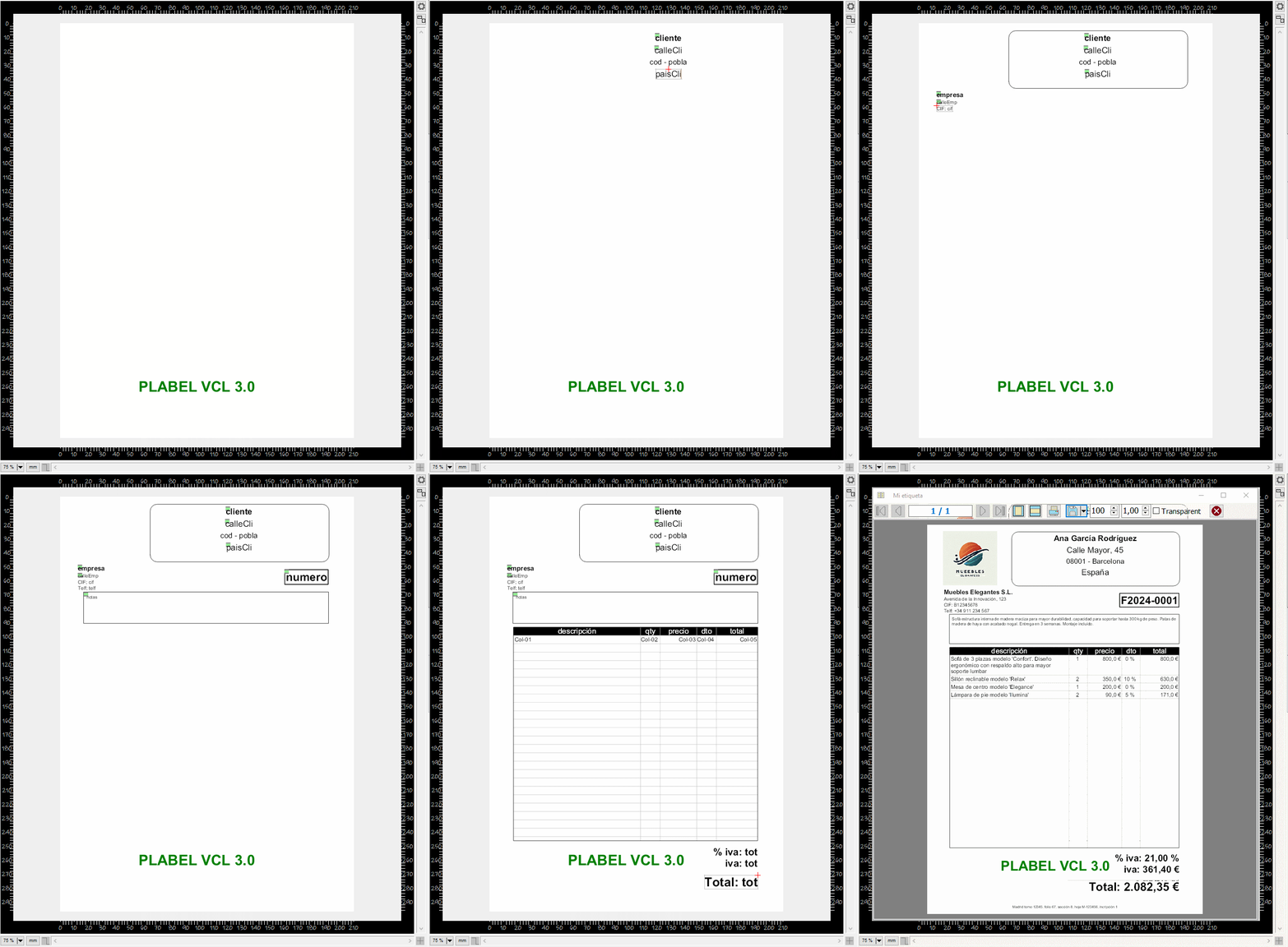
Use the editor components to design single-page reports such as invoices, certificates or summary sheets — combining text, images, barcodes and data binding in one layout.

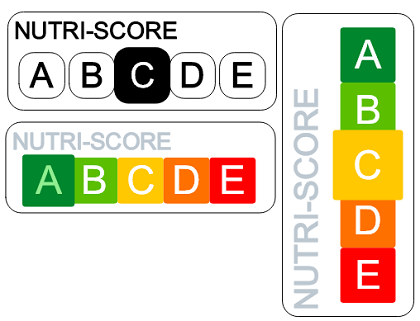
NutriScore symbols

NutriScore Symbols

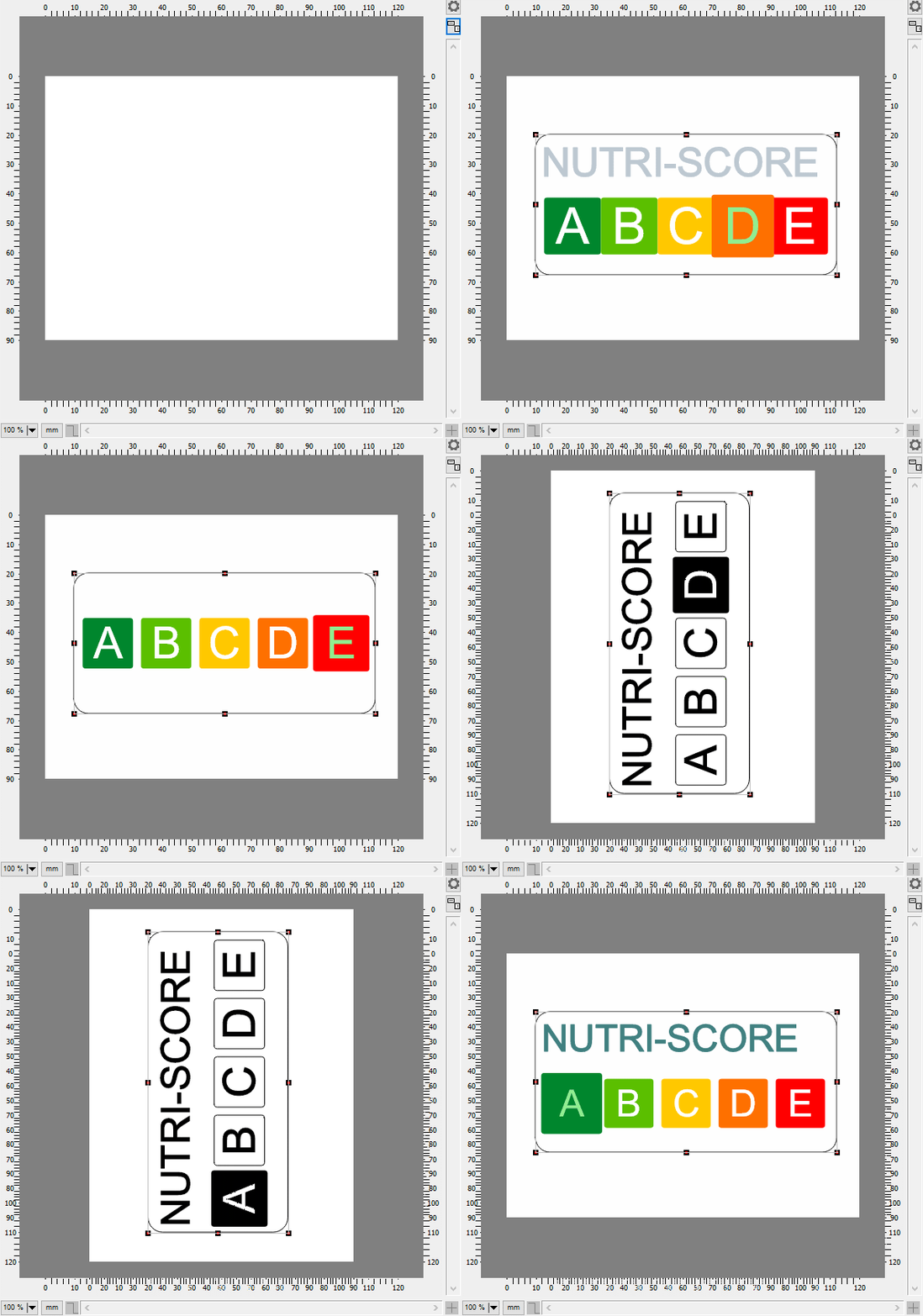
Built-in NutriScore element for food labelling — automatically renders the official colour-coded nutritional rating scale ready for compliant packaging designs.

30+ Drawing Elements (VCL & FMX)

Every element supports data binding, serialization and consistent manipulation through a unified API.

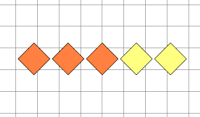
Arc Arc
Arrow Line Arrow Line
Barcode Barcode
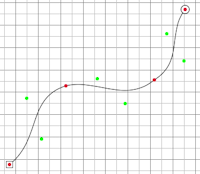
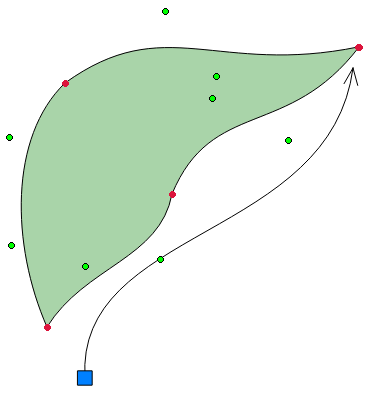
Bezier Bezier
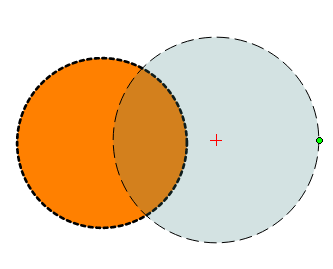
Circle Circle
Angular Dim Angular Dim
Diameter Dim 1 Diameter Dim 1
Diameter Dim 2 Diameter Dim 2
Dimension Dimension
Draw Bezier Draw Bezier
DataMatrix DataMatrix
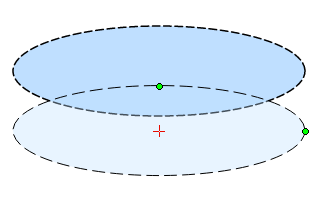
Ellipse Ellipse
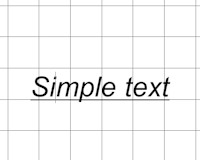
RichText RichText
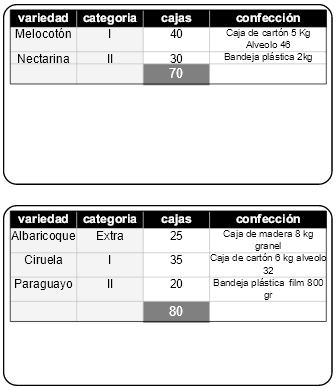
Table Table
Image Image
Level Level
Lines Lines
Curved Link Curved Link
NutriScore NutriScore
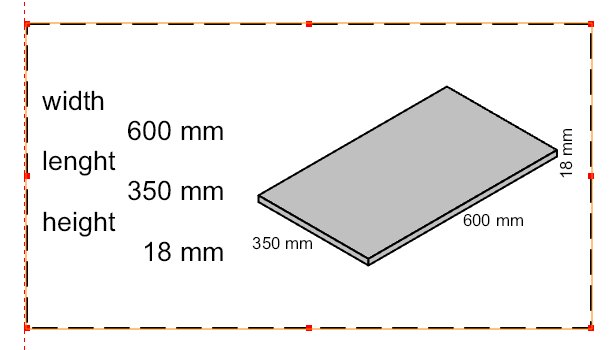
Package Package
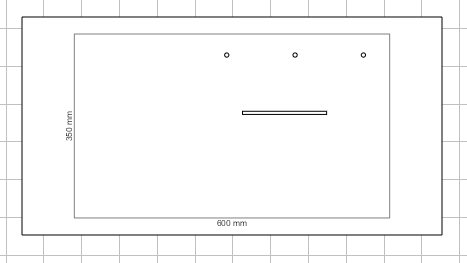
Package Drill Package Drill
PDF417 PDF417
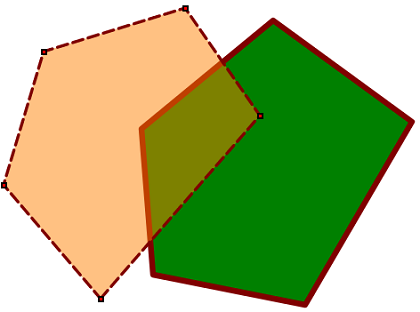
Polygon Polygon
PolyText PolyText
QR Code QR Code
Radial Dim 1 Radial Dim 1
Radial Dim 2 Radial Dim 2
Rank Rank
Rich Text Rich Text
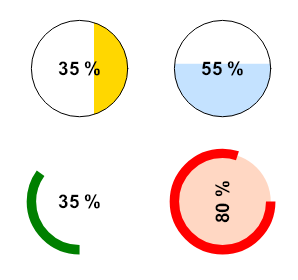
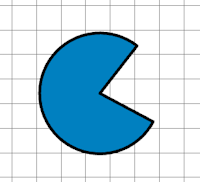
Sector Sector
Symbol Symbol
Text Text

Try the VCL Demos

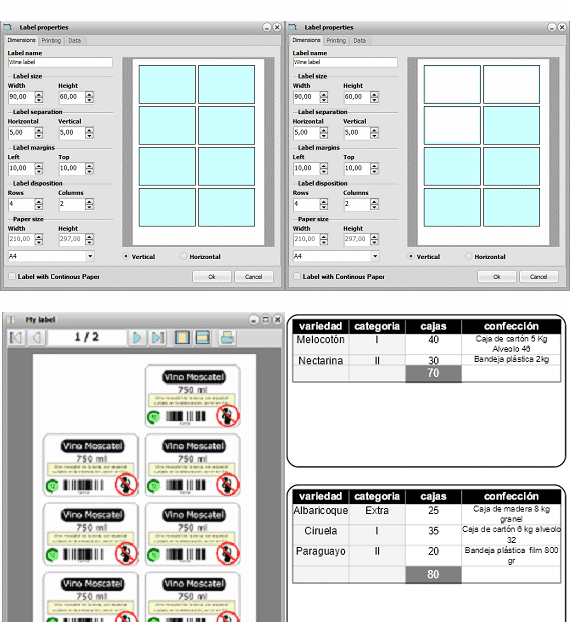
EmbedDraw VCL 3.2 Label Editor Demo

Try the FMX Demos

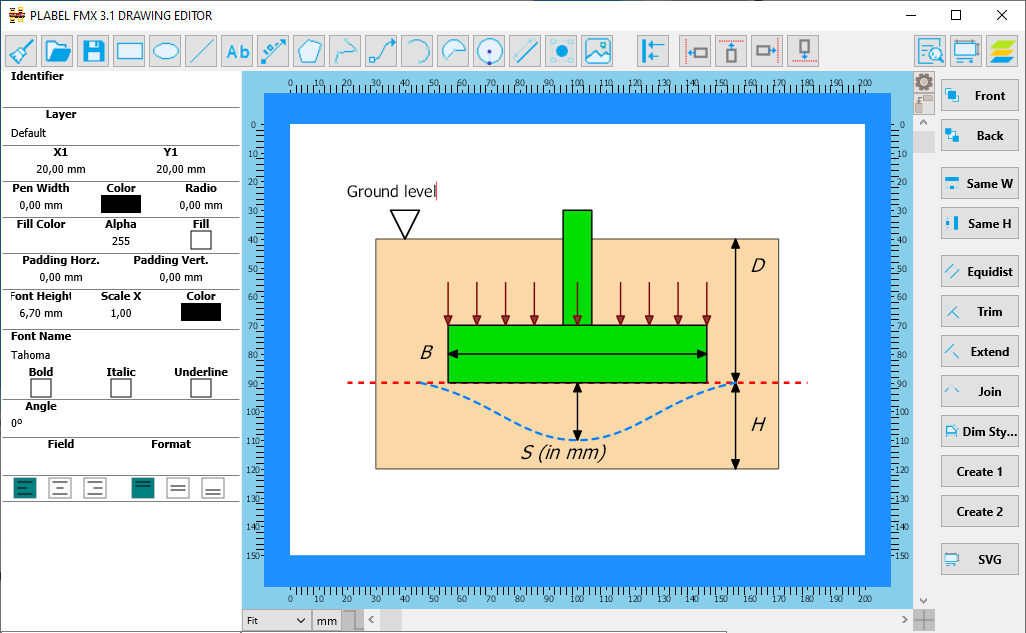
EmbedDraw FMX 3.2 Drawing Editor Demo

Purchase EmbedDraw VCL 3.2

Secure checkout via Stripe. Promotion codes are available only for new licenses on the Stripe checkout page. Please read the license agreement before purchasing.

Update licenses — who can buy them

The Update prices below apply only to customers who bought a version earlier than 3.0 of these components (then called PLABEL) through Share-it. If that is not your case, please buy a new license from the section below instead.

To validate an update purchase you must provide both of these:

  • The registration e-mail address used in your original Share-it order.
  • The Share-it purchase ID (order reference) of that same order.

Send both to EmbedDraw@mesurasoft.com after completing the checkout. Update licenses cannot be issued without this data.

Update — Share-it customers of versions prior to 3.0

VCL 3.2 — One Developer Update

160 €

Managed Payments checkout enabled for update licenses.

VCL 3.2 — Team Update (up to 5 developers)

320 €

Managed Payments checkout enabled for update licenses.

New license — everyone else

VCL 3.2 — One Developer

280 €

Promotion codes supported at checkout.

VCL 3.2 — Team (up to 5 developers)

680 €

Promotion codes supported at checkout.

Purchase EmbedDraw FMX 3.2

Secure checkout via Stripe. FMX is available as a new license only — there is no update price, because FireMonkey support did not exist in the Share-it versions. Promotion codes are supported on the Stripe checkout page. Please read the license agreement before purchasing.

FMX 3.2 — One Developer

280 €

Promotion codes supported at checkout.

FMX 3.2 — Team (up to 5 developers)

680 €

Promotion codes supported at checkout.

Migrating a 3.0 or 3.1 Project to 3.2

Because the components were renamed, a project written against 3.0 or 3.1 will not compile as is: the classes changed from the TMPL prefix to TEDW. The migration kit does that rewrite for you — unzip it into your project folder and run it.

It scans every .pas, .dfm and .fmx file in the folder and its subfolders, and updates:

  • 160 class names, from TMPLArc, TMPLBaseLabel… to TEDWArc, TEDWBaseLabel
  • The main components: TMPLabelVCL and TMPLabelFMX become TEmbedDrawVCL and TEmbedDrawFMX.
  • The PLabel property of the editor, inspector, library viewer and preview, which is now EmbedDraw — both in code and inside the form files.

The rename table is explicit, not a blind prefix replacement, so the TMPL types that still exist in 3.2 (TMPLUnits, TMPLItemType, TMPLPto, TMPLEditorMode, TMPLayerOpts…) are left untouched. Your uses clauses need no changes either: the unit names (MPL.Base, MPL.Text…) are the same as in earlier versions.

⬇ Download migration kit

Update_3_1_TO_3_2.zip · Windows

Usage

Migrar_EmbedDraw_3_2.bat
Migrar_EmbedDraw_3_2.bat C:\MyProject
Migrar_EmbedDraw_3_2.bat C:\MyProject /n
Migrar_EmbedDraw_3_2.bat C:\MyProject /s

With no argument it works on the current folder. /n is a dry run that reports what would change without writing. A timestamped backup is created before touching anything; /s skips it. Delphi's __history and __recovery folders are ignored.

📖 Documentation

</> Delphi How-To Guides

All snippets target EmbedDraw 3.2 on Delphi 10 to 13 Florence.

How to embed a label designer in Delphi VCL

Three components do the work: TEmbedDrawVCL holds the document, TEDWEditor is the drawing canvas with rulers, zoom and snapping, and TEDWInspector is the property panel. Drop them on a form once, and the designer is opened from anywhere in your application with a single call.

How to load Mermaid into a Delphi flowchart editor

LoadFromDiagram and LoadFromDiagramText parse Mermaid and PlantUML sources and build native EmbedDraw elements — not an image. The result can be moved, restyled, printed and exported like any hand-drawn diagram.

How to expose a Delphi visual editor through MCP

TEDWMCPServer publishes a drawing over the Model Context Protocol on a single Streamable HTTP endpoint. An AI assistant connects to it and can inspect the document, create and modify elements, manage layers, load diagrams, render previews and export files — while the user watches it happen in the editor.

How to display a GML agricultural parcel over OpenStreetMap in Delphi

LoadFromGML reads cadastral polygon geometry, reprojects it to geographic coordinates and composes an online map underneath it. The parcel becomes an ordinary editable polygon on its own layer, so you can annotate it, dimension it, print it or export it.

How to export a Delphi drawing to SVG

SaveSVG writes a vector SVG file and SVG returns the same markup as a string, which is what you want inside a web server or when storing the drawing in a database. Neither needs a visible editor, so both work in a service or a WebBroker module.

How to embed a label designer in Delphi VCL

Three components do the work: TEmbedDrawVCL holds the document, TEDWEditor is the drawing canvas with rulers, zoom and snapping, and TEDWInspector is the property panel. Drop them on a form once, and the designer is opened from anywhere in your application with a single call.

{ FormDesigner already holds, dropped at design time:
    EmbedDraw1   : TEmbedDrawVCL
    EDWEditor1   : TEDWEditor     (EmbedDraw = EmbedDraw1)
    EDWInspector1: TEDWInspector  (EmbedDraw = EmbedDraw1)
  Assigning those two EmbedDraw properties in the Object Inspector is the
  whole wiring: editor and inspector attach themselves as observers. }

function TFMain.EditLabelModal(const aFileName: TFileName): Boolean;
begin
  FormDesigner.Position := poMainFormCenter;

  { 1 - Document setup: mode, units, undo and label size. }
  with FormDesigner.EmbedDraw1 do
  begin
    EditorMode := emLabelling;              // emFlowChart, emDrawing, emInteractive
    Units      := unMM;
    Options    := [loUniqueID, loUndoRedo];
    Measure.PaperWidth  := 100;             // 100 x 60 mm, one label per sheet
    Measure.PaperHeight := 60;
    Measure.Width       := 100;
    Measure.Height      := 60;
    New;                                    // empty document
    if FileExists(aFileName) then LoadFromFile(aFileName);
  end;

  { 2 - Canvas setup: zoom, grid, snapping and visible toolbar features. }
  with FormDesigner.EDWEditor1 do
  begin
    Zoom          := zmFitAll;
    Grid          := gtBoth;
    Snap          := [snGrid, snPoint, snCenter];
    EditorOptions := [eoZoom, eoUnits, eoRotate, eoMouseWheel,
                      eoEditOnDblClick, eoInput];
  end;

  { 3 - Open it as a modal window. }
  Result := FormDesigner.ShowModal = mrOk;
  if Result then
    FormDesigner.EmbedDraw1.SaveToFile(aFileName);   // lfBin, or lfJSON
end;

{ ---- Inside FormDesigner: the toolbar is just properties and methods ---- }

procedure TFormDesigner.butTextClick(Sender: TObject);
begin
  EmbedDraw1.Action := eaText;        // next click on the canvas inserts a text
end;

procedure TFormDesigner.butBarcodeClick(Sender: TObject);
begin
  EmbedDraw1.Action := eaBarcode;     // eaLine, eaRectangle, eaQRCode, eaSymbol...
end;

procedure TFormDesigner.butPropertiesClick(Sender: TObject);
begin
  EmbedDraw1.EditProperties;          // modal document properties dialog
end;

procedure TFormDesigner.butLayersClick(Sender: TObject);
begin
  EmbedDraw1.EditLayers;              // modal layer manager
end;

procedure TFormDesigner.butUndoClick(Sender: TObject);
begin
  EmbedDraw1.Undo;                    // EmbedDraw1.Redo for the other direction
end;

procedure TFormDesigner.butAlignLeftClick(Sender: TObject);
begin
  EmbedDraw1.AlignObjects(oaLeft);    // or EDWEditor1.AlignSelectedLeft
end;

procedure TFormDesigner.butOkClick(Sender: TObject);
begin
  ModalResult := mrOk;
end;

{ ---- Events assigned in the Object Inspector ---- }

procedure TFormDesigner.EmbedDraw1UndoRedoEvent(Sender: TObject;
  emptyUndo, emptyRedo: Boolean);
begin
  butUndo.Enabled := not emptyUndo;
  butRedo.Enabled := not emptyRedo;
end;

procedure TFormDesigner.EmbedDraw1SelectItem(Sender: TObject;
  aItem: TEDWBaseItem);
begin
  StatusBar1.Panels[0].Text := aItem.ID;
end;

procedure TFormDesigner.EmbedDraw1InfoMsg(Sender: TObject;
  const Action, State: string);
begin
  StatusBar1.Panels[1].Text := Action;
  StatusBar1.Panels[2].Text := State;
end;

What each step does

  • EditorMode selects the personality of the document: emLabelling, emFlowChart, emDrawing or emInteractive.
  • Measure holds paper and label size, margins, rows, columns and document metadata. Internally 1 mm = 1000 base points, so nothing is lost when zooming or printing.
  • Editor.EmbedDraw and Inspector.EmbedDraw, assigned in the Object Inspector, are the whole wiring: both attach as observers and repaint themselves when the selection or the document changes.
  • Action starts an insertion: the next click on the canvas creates the element. EditProperties, EditLayers, EditDimStyles and EditSymbolDef open the built-in modal dialogs.
  • Options switches on unique element IDs and the undo/redo stack (Undo, Redo, OnUndoRedoEvent).
  • SaveToFile writes the binary format by default; pass lfJSON for a text document, or use SaveToStream to keep the label in a database blob.
  • For FireMonkey the code is the same with TEmbedDrawFMX and the MPL.FMX, MPL.FMX.Editor and MPL.FMX.Inspector units. The property names are identical.

Full reference: Developer Guide (PDF) — components and editor chapters.

How to load Mermaid into a Delphi flowchart editor

LoadFromDiagram and LoadFromDiagramText parse Mermaid and PlantUML sources and build native EmbedDraw elements — not an image. The result can be moved, restyled, printed and exported like any hand-drawn diagram.

{ FormFlow already holds EmbedDraw1 (TEmbedDrawVCL) and EDWEditor1
  (TEDWEditor), linked at design time. Nothing is created here. }

procedure TFMain.ShowMermaidModal(const aSource: string);
var
  Model : TEDWDiagramModel;
  Diag  : TMPLDiagramDiagnostic;
begin
  { 1 - Optional pre-flight check. The parser is framework neutral, so the
        source can be validated before touching any document. Passing True
        as third argument raises EMPLDiagramParseError on the first warning. }
  Model := MPLParseDiagram(aSource, dgMermaid, False);
  try
    for Diag in Model.Diagnostics do
      memoLog.Lines.Add(Format('Line %d [%s]: %s',
        [Diag.Line, Diag.Code, Diag.MessageText]));
  finally
    Model.Free;
  end;

  FormFlow.Position := poMainFormCenter;
  FormFlow.EmbedDraw1.EditorMode := emFlowChart;   // recommended for diagrams

  { 2 - One call. Nodes become TEDWFlow shapes, relationships become
        TEDWLink connectors and labels stay editable text items. The paper
        size is adjusted to the generated content. }
  if not FormFlow.EmbedDraw1.LoadFromDiagramText(aSource, dgMermaid) then
    raise Exception.Create('The diagram produced no elements');

  { From a file instead of a string:
      FormFlow.EmbedDraw1.LoadFromDiagram('C:\Diagrams\order.mmd');
      FormFlow.EmbedDraw1.LoadFromDiagram('C:\Diagrams\login.puml', dgPlantUML); }

  FormFlow.EDWEditor1.Zoom          := zmFitAll;
  FormFlow.EDWEditor1.EditorOptions := [eoZoom, eoMouseWheel,
                                        eoEditOnDblClick, eoDrawLinkPoints];

  FormFlow.ShowModal;   // the user can edit, print or export the diagram
end;

{ ---- Inside FormFlow: keep drawing with the flowchart API ---- }

procedure TFormFlow.butDecisionClick(Sender: TObject);
begin
  EmbedDraw1.FlowAction(ftDecision);   // ftProcess, ftTerminator, ftData...
end;

procedure TFormFlow.butStepLinkClick(Sender: TObject);
begin
  EmbedDraw1.LinkAction(ltStepLineTwoPto);   // ltDirLine, ltArc, ltCurve...
end;

procedure TFormFlow.butConnectClick(Sender: TObject);
begin
  { Connects two shapes by their string IDs and connection point indices. }
  EmbedDraw1.AddLink('Decision', 'Ship', 2, 0, ltDirLine);
end;

What each step does

  • dgAuto detects the language from the extension (.mmd, .mermaid versus .puml, .plantuml, .pu, .iuml, .wsd) and falls back to inspecting the content, for example a @startuml header.
  • A successful import replaces the current content, sets the units to millimetres and fits the paper to the generated diagram. It returns False when no element could be created.
  • Flow charts are laid out by levels; sequence diagrams use participants, lifelines and vertically ordered events, and backward connections are routed around the nodes.
  • MPLParseDiagram lets you validate first: every diagnostic carries Severity, Line, Code, MessageText and SourceText. Strict mode raises EMPLDiagramParseError instead of silently accepting a partial diagram.
  • After the import you keep drawing with the same API: FlowAction inserts shapes, LinkAction inserts connectors and AddLink joins two elements by ID.
  • The same import is available to AI clients through the MCP tool load_diagram, which accepts the same strict option and returns the diagnostics.

Full reference: Developer Guide (PDF) — chapter 4, Diagrams from Mermaid and PlantUML.

How to expose a Delphi visual editor through MCP

TEDWMCPServer publishes a drawing over the Model Context Protocol on a single Streamable HTTP endpoint. An AI assistant connects to it and can inspect the document, create and modify elements, manage layers, load diagrams, render previews and export files — while the user watches it happen in the editor.

{ Already on the forms at design time:
    FormEditor.EmbedDraw1 : TEmbedDrawVCL
    FormEditor.EDWEditor1 : TEDWEditor
    MCPServer1            : TEDWMCPServer   (non-visual, EmbedDraw palette)
  For FireMonkey, add MPL.MCP.FMX.Tools instead of MPL.MCP.VCL.Tools:
  the tools unit registers the standard drawing tools by itself. }

procedure TFMain.butPublishMCPClick(Sender: TObject);
begin
  FormEditor.Position := poMainFormCenter;

  { 1 - Connection and security. }
  MCPServer1.DrawLabel    := FormEditor.EmbedDraw1;  // drawing exposed to the tools
  MCPServer1.Port         := 3001;
  MCPServer1.EndpointPath := '/mcp';                 // Streamable HTTP endpoint
  MCPServer1.BindAddress  := '127.0.0.1';            // loopback needs no token
  // MCPServer1.AuthToken := 'a-long-random-token';  // required off loopback
  // MCPServer1.AllowedOrigins := 'http://localhost:5173';
  MCPServer1.RegisterDefaultTools;                   // 59 standard tools

  { 2 - Start it and open the editor modally. Every mutating tool finishes
        pending calculations and repaints the attached editors before
        returning its JSON-RPC result, so the drawing updates live. }
  MCPServer1.Active := True;                         // same as MCPServer1.Start
  try
    labEndpoint.Caption := Format('http://127.0.0.1:%d%s   (%d tools)',
      [MCPServer1.Port, MCPServer1.EndpointPath, MCPServer1.Tools.Count]);
    FormEditor.ShowModal;
  finally
    MCPServer1.Active := False;                      // same as MCPServer1.Stop
  end;
end;

{ ---- Events and extension points ---- }

procedure TFMain.MCPServer1Log(Sender: TObject; const AMessage: string);
begin
  memoLog.Lines.Add(AMessage);                       // OnLog
end;

procedure TFMain.butShowStateClick(Sender: TObject);
begin
  labState.Caption := Format('Protocol %s, session %s, initialized: %s',
    [MCPServer1.ProtocolVersion, MCPServer1.SessionId,
     BoolToStr(MCPServer1.Initialized, True)]);
end;

procedure TFMain.butCustomToolClick(Sender: TObject);
begin
  { Adds an application-specific verb. The server owns the schema. }
  MCPServer1.RegisterTool('set_editor_view',
    'Sets zoom and scroll position of the editor',
    BuildViewSchema, DoSetEditorView);
end;

What each step does

  • DrawLabel is the drawing the tools operate on; RegisterDefaultTools registers the 59 standard tools of the platform.
  • The endpoint is http://<BindAddress>:<Port><EndpointPath>, which with the defaults is http://127.0.0.1:3001/mcp. Point your MCP client at that URL.
  • Security is explicit: the server binds to loopback, and starting it refuses any other BindAddress unless AuthToken is set. AllowedOrigins restricts browser CORS, MaxRequestBytes (8 MiB) and MaxAIImageBytes (20 MiB) cap payloads, and LogPayloads is off so drawing data is not written to logs.
  • Active and the Start/Stop methods are equivalent; Initialized, ProtocolVersion, SessionId and Tools expose the live state.
  • Add application-specific verbs with RegisterTool(Name, Description, InputSchema, Handler); the server takes ownership of the schema and frees it.
  • Both protocol eras are supported: the modern 2026-07-28 discovery flow and legacy initialization through 2025-11-25.
  • For a direct AI call instead of an MCP client, set AIProvider, AIModel and the run-time-only AIApiKey, and build the tool list with BuildAIToolDefinitions (Anthropic, OpenAI and Gemini formats).

Full reference: Developer Guide (PDF) — chapter 8, MCP Server, and chapter 9, AI tools.

How to display a GML agricultural parcel over OpenStreetMap in Delphi

LoadFromGML reads cadastral polygon geometry, reprojects it to geographic coordinates and composes an online map underneath it. The parcel becomes an ordinary editable polygon on its own layer, so you can annotate it, dimension it, print it or export it.

{ FormMap already holds EmbedDraw1 (TEmbedDrawVCL), EDWEditor1 (TEDWEditor)
  and labStatus. EmbedDraw1.OnComposeImage is assigned in the Object
  Inspector to EmbedDraw1ComposeImage below. }

procedure TFMain.butParcelClick(Sender: TObject);
begin
  FormMap.Position := poMainFormCenter;
  FormMap.EmbedDraw1.New;
  FormMap.labStatus.Caption := 'Requesting map tiles...';

  { One call does everything: it parses the GML, converts the declared EPSG
    coordinate system to geographic coordinates, creates the "GML map" and
    "GML parcels" layers, computes the drawing scale, switches the document
    to emDrawing and requests the OpenStreetMap image. }
  if not FormMap.EmbedDraw1.LoadFromGML('parcel.gml', 19, mpOpenStreetMap,
                                        gmtLayerBackground) then
    ShowMessage('The GML file contains no polygons');

  { GPX tracks, routes and waypoints work the same way. Zoom 0 fits the
    whole geographic extent automatically:
      FormMap.EmbedDraw1.LoadFromGPX('route.gpx', 0, mpOpenTopo,
                                     gmtLayerBackground); }

  FormMap.EDWEditor1.Zoom := zmFitAll;
  FormMap.ShowModal;
end;

{ ---- Inside FormMap ---- }

procedure TFormMap.EmbedDraw1ComposeImage(Sender: TObject);
begin
  { Map tiles are downloaded asynchronously; the parcel polygons are drawn
    and usable before this event fires. }
  labStatus.Caption := 'OpenStreetMap background composed';
  EmbedDraw1.Refresh;
end;

procedure TFormMap.EmbedDraw1GMLCoordinateTransform(Sender: TObject;
  EPSG: Integer; X, Y: Double; var Latitude, Longitude: Double;
  var Handled: Boolean);
begin
  { Only needed for a coordinate system outside the native list.
    Set Handled after producing a valid latitude and longitude. }
  if EPSG = 25831 then
  begin
    MyProjection.ToWGS84(X, Y, Latitude, Longitude);
    Handled := True;
  end;
end;

procedure TFormMap.butProviderClick(Sender: TObject);
begin
  { Switch the background service of the map layer already created. }
  EmbedDraw1.Mapping.Provider := mpESRI;   // mpSIGPAC, mpIGNPNOA, mpOpenTopo...
end;

What each step does

  • The loader creates two layers: a GML map layer holding the composed image and a selectable GML parcels layer with the polygons.
  • Providers include mpOpenStreetMap, mpOpenTopo, mpCartoDB, mpESRI, mpSIGPAC, mpIGNBase and mpIGNPNOA. The chosen provider, zoom and centre are stored on the map layer and added to Mapping.MapProviders.
  • gmtLayerBackground includes the map in background SVG and export output; gmtImageElement keeps it as normal layer content.
  • Native reprojection covers CRS84 and EPSG 4326, 4258, 4269, 4283 and 3857, plus the northern and southern UTM families and GDA2020 MGA zones. For any other system, handle OnGMLCoordinateTransform and set Handled only after producing a valid latitude and longitude.
  • Map composition is asynchronous: OnComposeImage tells you when the tiles arrived, and another GML or GPX import cannot start until it finishes.
  • LoadFromGPX imports tracks, routes and waypoints the same way; a zoom of 0 fits the whole extent automatically.

Full reference: Developer Guide (PDF) — chapter 5, GML maps and cadastral data.

How to export a Delphi drawing to SVG

SaveSVG writes a vector SVG file and SVG returns the same markup as a string, which is what you want inside a web server or when storing the drawing in a database. Neither needs a visible editor, so both work in a service or a WebBroker module.

{ FormEditor already holds EmbedDraw1 (TEmbedDrawVCL), EDWEditor1
  (TEDWEditor) and SaveDialog1 (TSaveDialog). }

procedure TFormEditor.butSaveSVGClick(Sender: TObject);
begin
  SaveDialog1.Filter     := 'SVG files (*.svg)|*.svg';
  SaveDialog1.DefaultExt := 'svg';

  { Execute opens the modal, centred Windows save dialog. svCurrentUnit
    keeps the document units, Factor = 1, and the last flag writes an id
    attribute on every SVG element, taken from the element ID. }
  if SaveDialog1.Execute then
    EmbedDraw1.SaveSVG(SaveDialog1.FileName, svCurrentUnit, 1, True);
end;

function TFormEditor.DrawingAsSVG: string;
begin
  { The same output as a string: an HTTP response, a report or a blob. }
  Result := EmbedDraw1.SVG(svCurrentUnit, 1, True);
end;

procedure TFormEditor.butExportClick(Sender: TObject);
begin
  { Type, file, page, scale, quality, check data, transparent [, fit]. }
  EmbedDraw1.ExportDoc(exPDF, 'plate.pdf', 1, 1, 100, False, False);
  EmbedDraw1.ExportDoc(exPNG, 'plate.png', 1, 4, 100, False, True);
end;

procedure TFormEditor.butPreviewClick(Sender: TObject);
begin
  EmbedDraw1.Preview;      // modal print preview window
end;

{ ---- Building the drawing by code before exporting ---- }

procedure TFormEditor.butBuildPlateClick(Sender: TObject);
begin
  EmbedDraw1.New;
  EmbedDraw1.Units               := unMM;
  EmbedDraw1.Measure.PaperWidth  := 210;    // A5 landscape
  EmbedDraw1.Measure.PaperHeight := 148;
  EmbedDraw1.Measure.Width       := 210;
  EmbedDraw1.Measure.Height      := 148;

  EmbedDraw1.BeginUpdate;    // one recalculation instead of one per element
  try
    TEDWFactory.AddRectangle(EmbedDraw1, 20, 20, 120, 60).PenWidth := 0.5;
    with TEDWFactory.AddText(EmbedDraw1, 20, 12) do
    begin
      Text       := 'Assembly plate';
      FontHeight := 6;
    end;
    with TEDWFactory.AddArrowLine(EmbedDraw1, 20, 90, 140, 90) do
    begin
      Text       := '120 mm';
      FontHeight := 3;
      FromType   := ttArrow;
      ToType     := ttArrow;
    end;
  finally
    EmbedDraw1.EndUpdate;
  end;
end;

What each step does

  • ExportType is svCurrentUnit with Factor = 1 for a one-to-one export in document units; svFactor and svFactorPx scale the output, and svCurUnitNoMed omits the measurement wrapper.
  • The last argument writes an id attribute on each SVG element, taken from the element ID. That is what makes the output scriptable in a browser — give your items meaningful IDs and you can address them from JavaScript.
  • BeginUpdate and EndUpdate around bulk creation avoid one recalculation per element on large drawings.
  • ExportDoc covers exPDF, exXPS, exPNG, exJPEG, exBMP and exGIF, with page, scale, quality, data-check, transparency and fit-to-page arguments.
  • The TEDWFactory class methods create every element type by code: lines, arcs, polygons, text, barcodes, QR, DataMatrix, PDF417, images, flow shapes, links, tables, dimensions and symbols.

Full reference: Developer Guide (PDF) — section 12.1.2.17 SaveSVG, and the export chapter.
Demo Installers by Delphi Version

Choose your Delphi version and download the demo installer for VCL or FMX.

Delphi Version VCL Demo FMX Demo
Delphi 10Download VCLDownload FMX
Delphi 10.1Download VCLDownload FMX
Delphi 10.2Download VCLDownload FMX
Delphi 10.3Download VCLDownload FMX
Delphi 10.4Download VCLDownload FMX
Delphi 11Download VCLDownload FMX
Delphi 12 AthensDownload VCLDownload FMX
Delphi 13 FlorenceDownload VCLDownload FMX

Stay Updated on EmbedDraw

Get notified about new releases, features and special offers.